Display Text
Materials
AMB82-mini x 1
Waveshare E-Paper [2.9inch E-Paper HAT (D)/ 2.9inch E-Paper V2/ 2.9inch e-Paper Module (B)/ 4.2inch e-Paper Module/ 7.5-inch E-Ink display HAT] x1
Note
The Universal E-Paper Driver HAT using for all E-Papers is compatible with version V2.1 only.
Example
Introduction
In this example, Ameba Pro2 board will be used to connect to a Waveshare e-Paper module (2.9inch/ 4.2inch/ 7.5inch) to display texts. The display uses the flexible substrate as base plate, with an interface and a reference system design. You may refer to the official datasheet to know more information about these modules.
Procedure
AMB82-Mini wiring diagram:
2.9inch HAT (D) e-Paper Module
2.9inch E-Paper V2 e-Paper Module/ 2.9inch e-Paper Module (B)
4.2inch e-Paper Module
7.5-inch e-Paper Module
Do note that Display Config should be set to B and Interface Config should be set to 0.
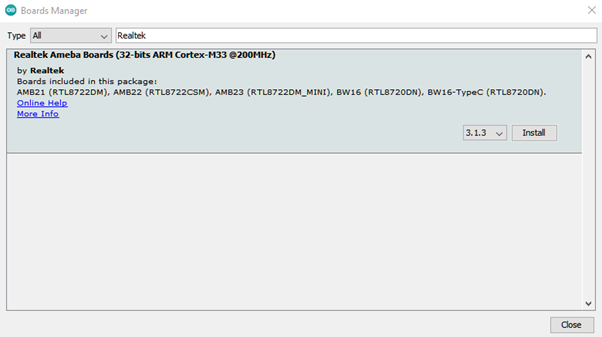
Download the Eink zip library AmebaEink.zip Then install the AmebaEink.zip by navigating to Sketch -> Include Library -> Add .ZIP Library…
Eink examples are categorised based on the size and modules of the e-Paper display.
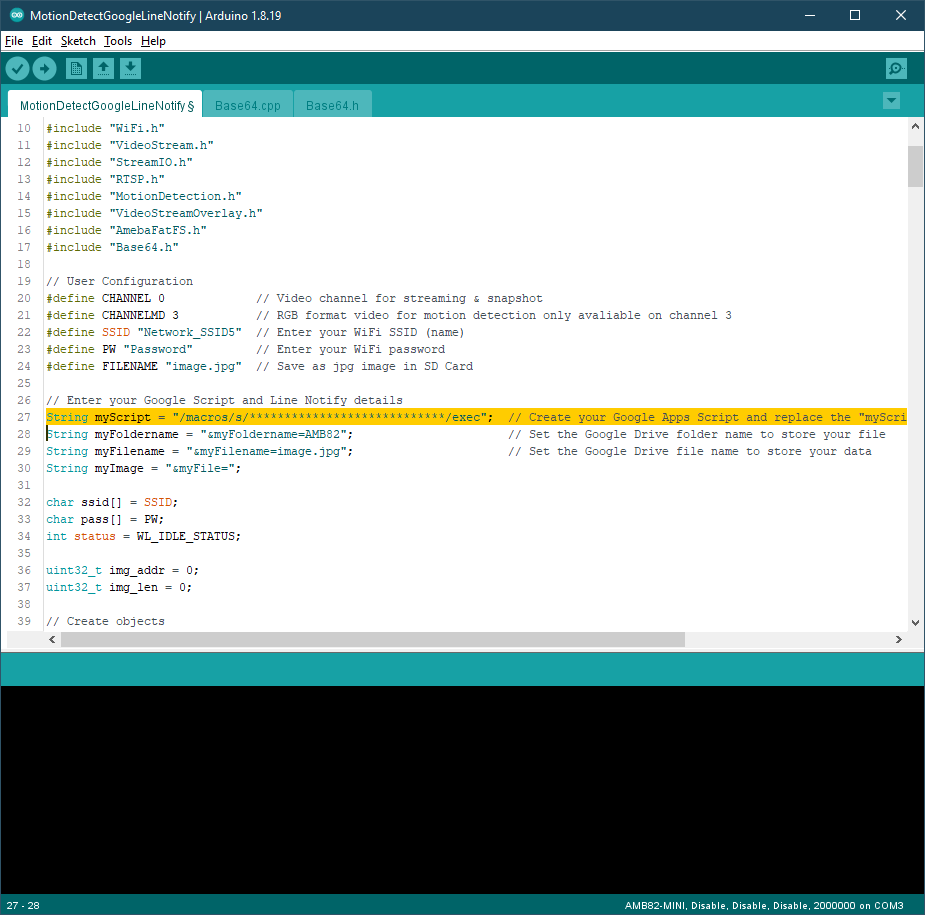
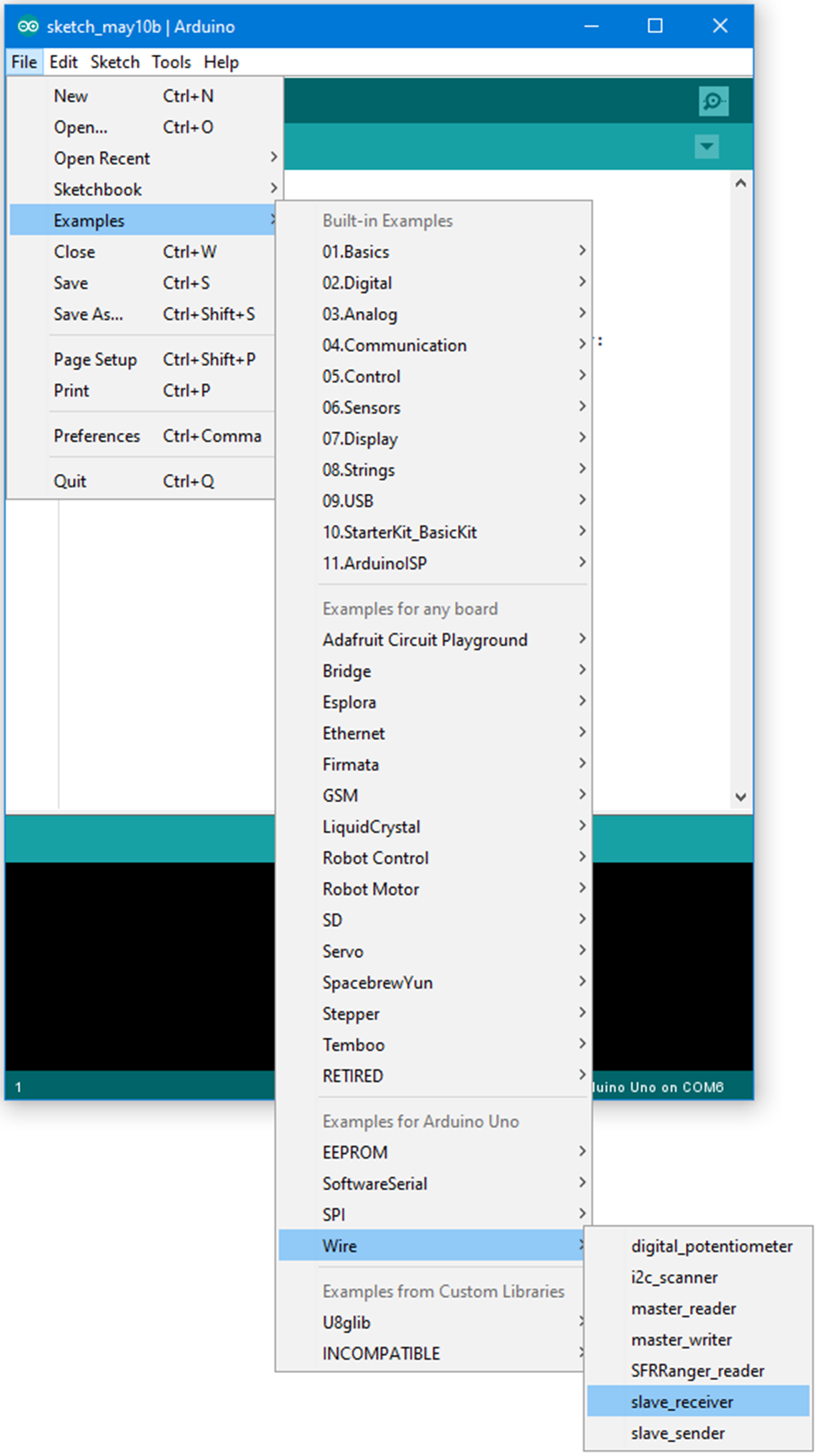
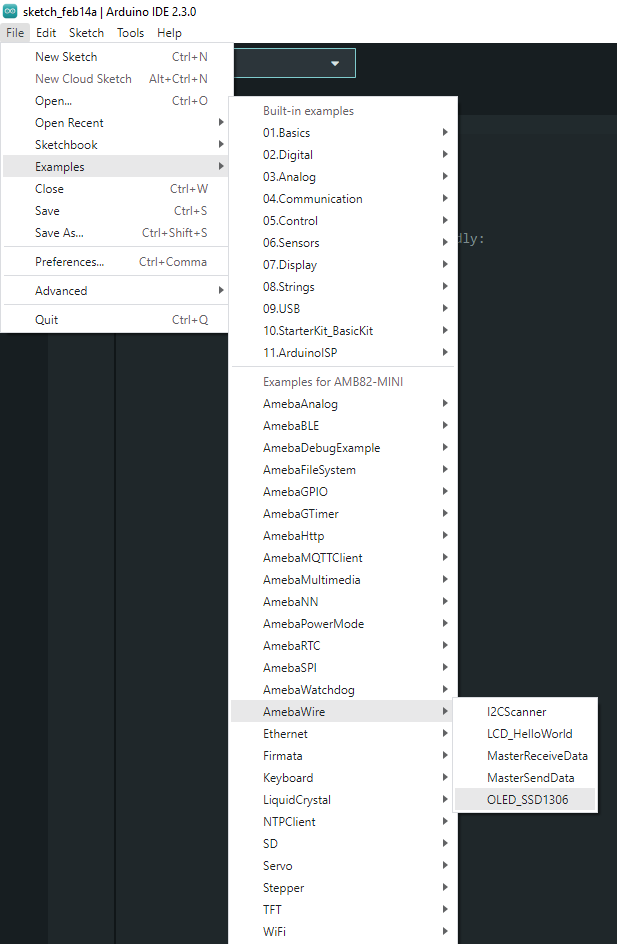
Open one of the “EinkDisplayText” examples. For example, File -> Examples -> AmebaEink -> EPD_2in9v2 -> EinkDisplayText
You may choose any GPIO pins for Busy, Reset and DC pin. You can refer to for AMB82-Mini’s pinmap.
Upload the code to the board and press the reset button after uploading is done. You will find these texts displayed on the boards:
The 2.9-inch e-Paper Module (B) supports three colours—red, black, and white. Therefore, it can display red on the e-Paper display shown on the most left.