RTSP Video Streaming With Zoom
Materials
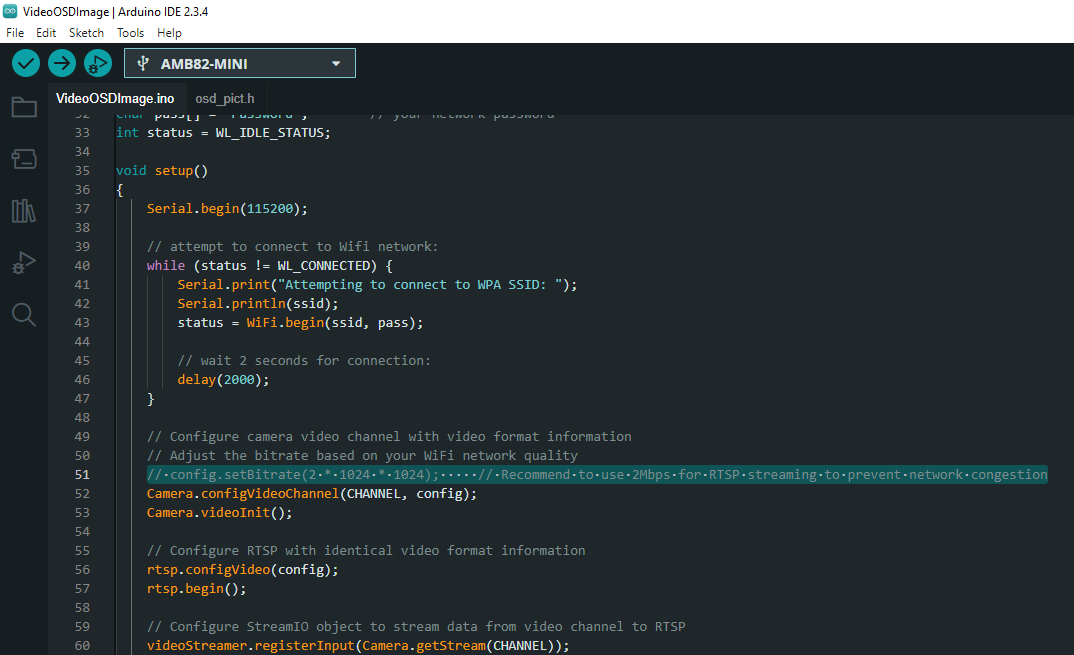
AMB82-mini x 1
Example
In this example, we will use the Ameba Pro2 board to stream video data from the on-board camera sensor while demonstrating a dynamic zoom function, to a computer via RTSP (Real Time Streaming Protocol).
Open the example in File -> Examples -> AmebaMultimedia -> StreamRTSP -> VideoOnlyWithZoom
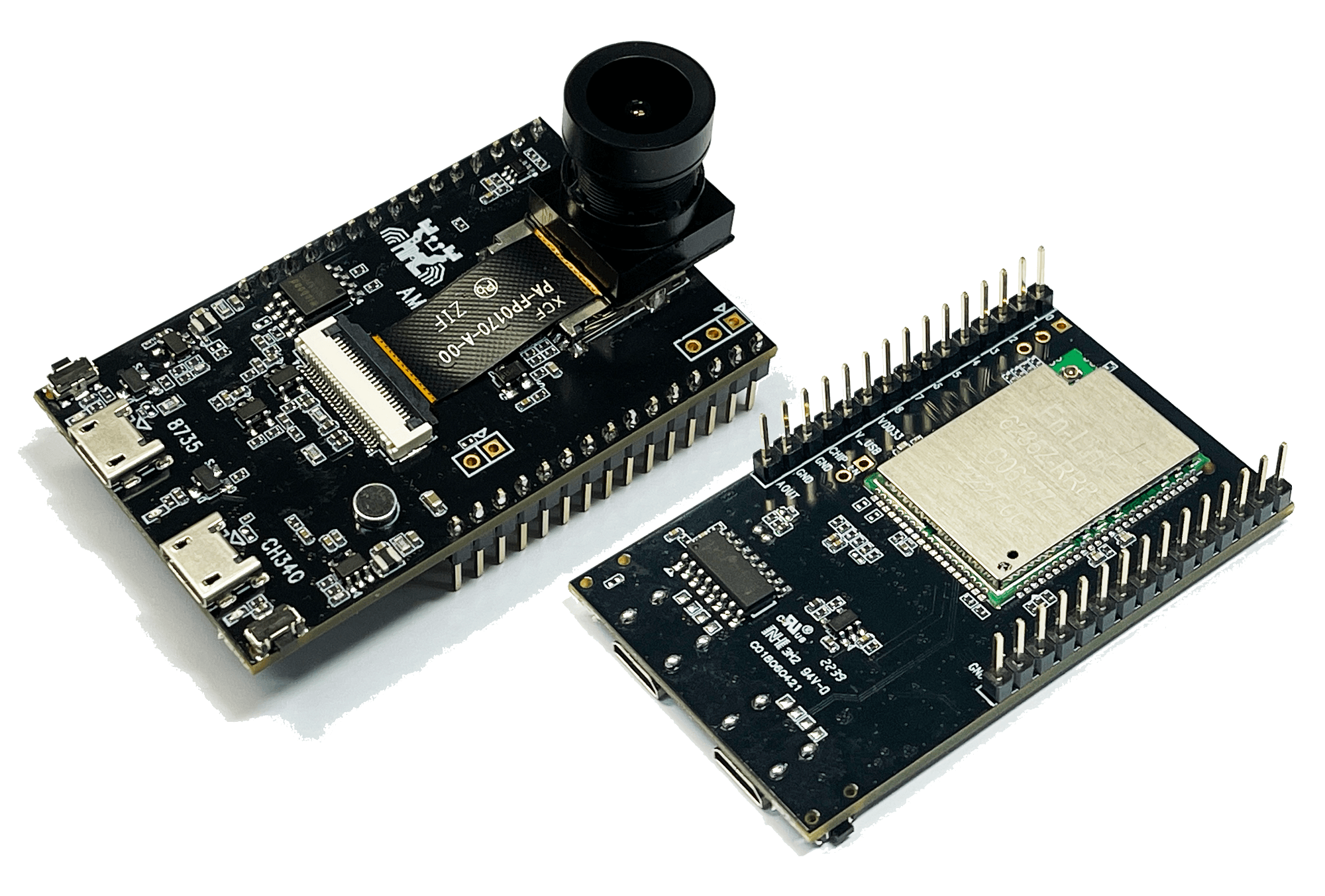
The dynamic zoom behavior can be configured by modifying the following macro:
Users can update DYN_ZOOM_MODE to select between two zoom modes:
SCALE_UP_MODE (default): Creating a zoom-in effect.
SCALE_DOWN_MODE: Creating a zoom-out effect.
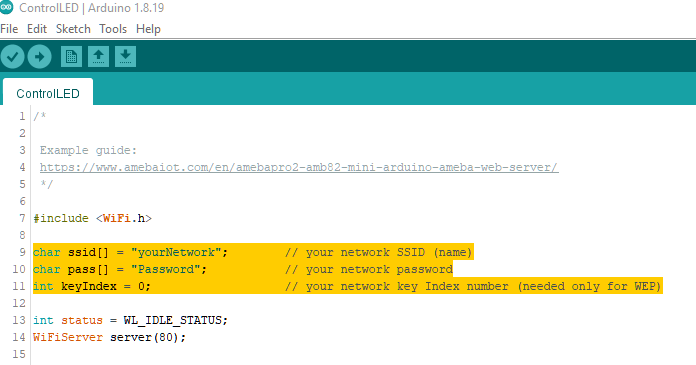
In the highlighted code snippet, fill in the “ssid” with your WiFi network SSID and “pass” with the network password.
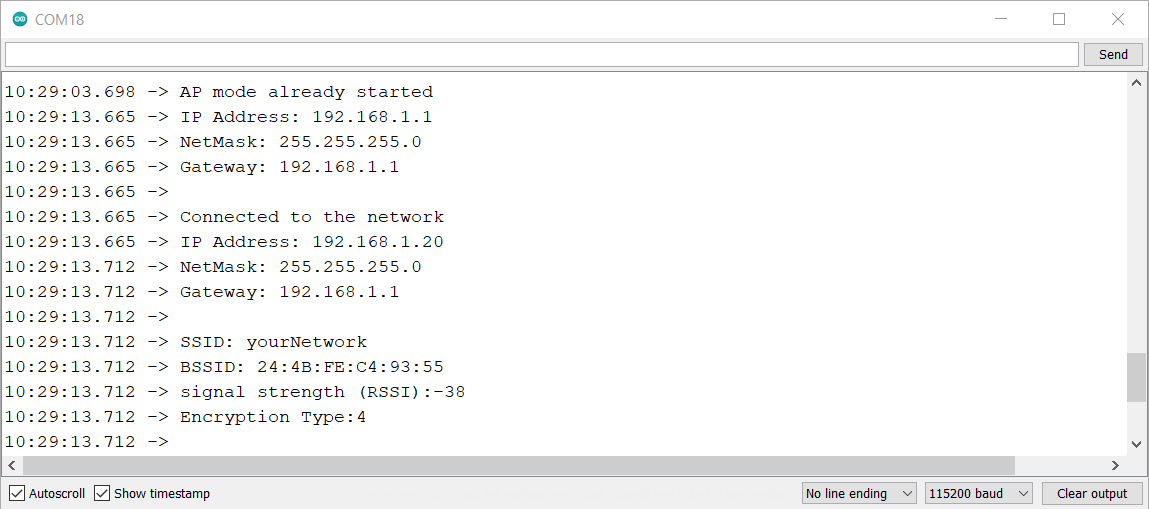
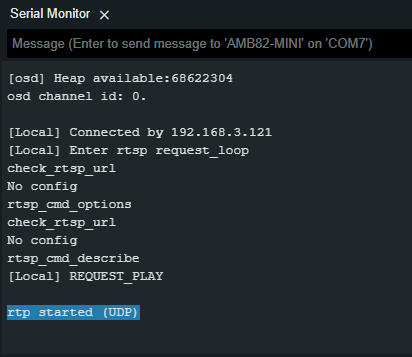
Compile the code and upload it to Ameba. After pressing the Reset button, wait for the Ameba Pro 2 board to connect to the WiFi network. The board’s IP address and network port number for RTSP will be shown in the Serial Monitor.
You may download VLC media player from the link (here).
Upon the completion of the software installation, open VLC media player, and go to Media -> Open Network Stream
Make sure your PC is connected to the same network as the Ameba Pro2 board for streaming. Since RTSP is used as the streaming protocol, key in rtsp://{IPaddress}:{port} as the Network URL in VLC media player, replacing {IPaddress} with the IP address of your Ameba Pro2 board, and {port} with the RTSP port shown in Serial Monitor e.g., rtsp://192.168.1.154:554. The default RTSP port number is 554. In the case of two simultaneous RTSP streams, the second port number defaults to 555.
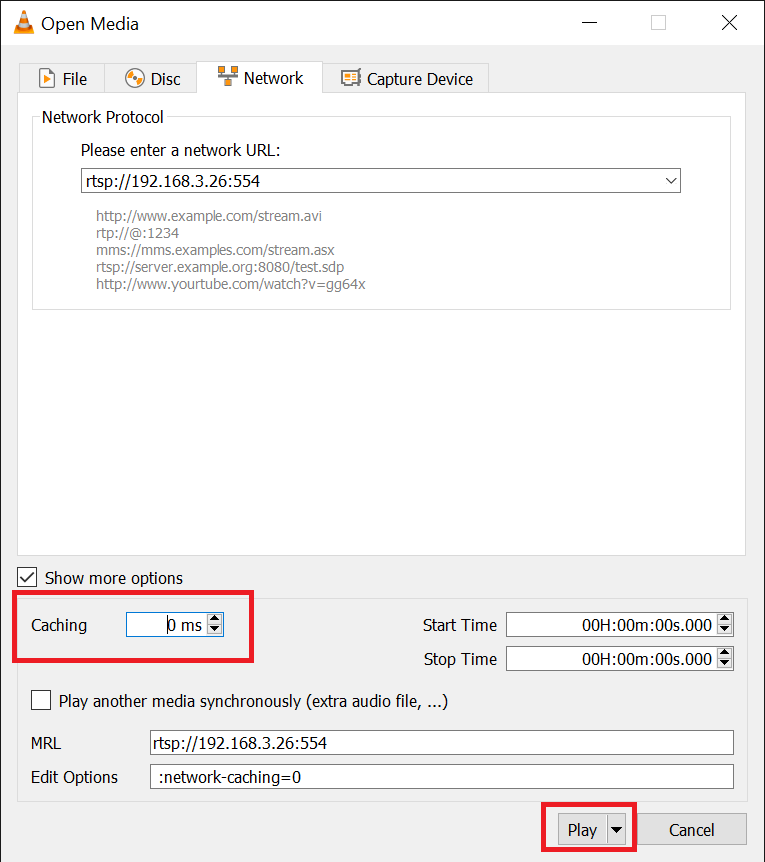
You may choose to change the caching time in “Show more options”. A lower cache time will result in reduced video latency but may introduce playback stuttering in the case of poor network conditions.
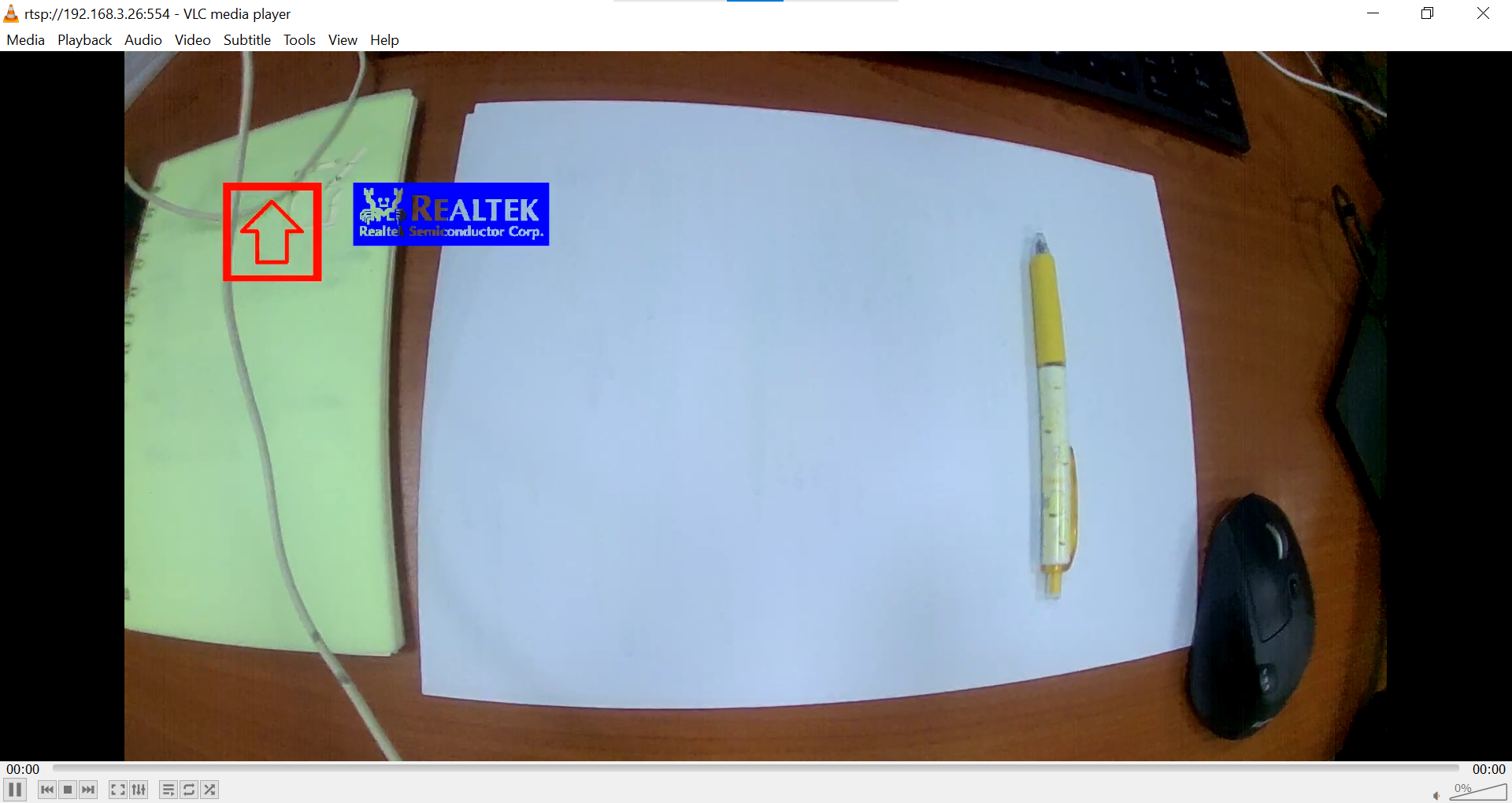
Next, click “Play” to start RTSP streaming. The video stream from the camera will be shown in VLC media player. Meanwhile, in your Serial Monitor, the message “rtp started (UDP)” will appear.
OSD text is drawn on the video to display the current zoom mode and ROI resolution.
Code Reference
The camera can produce 3 simultaneous video stream channels, with the default configuration for each channel as shown. You may choose to edit the code to use a different video stream.
You may adjust the video bitrate based on your WiFi network quality, by uncommenting the highlighted code below.