TensorFlow Lite - Micro Speech
Materials
AmebaD [AMB21 / AMB22 / AMB23 / AW-CU488 Thing Plus] x 1
Adafruit PDM MEMS microphone
LED x 4
Example
Connect the microphone and LEDs to the Ameba board according to the diagram below.
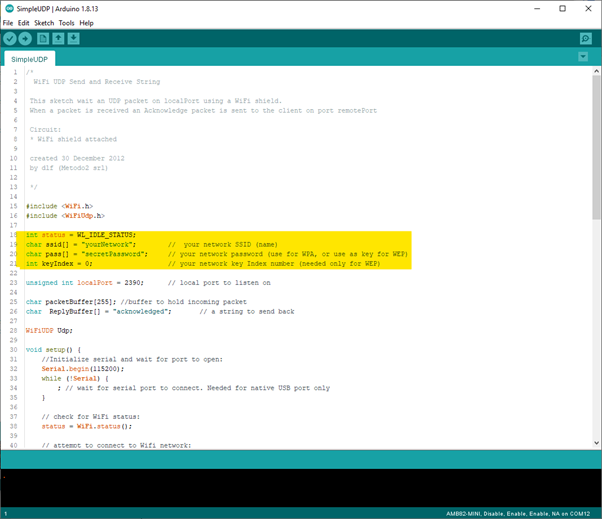
Note
As AMB23 have a built in microphone on the board, there is no need for any external microphone. For the LEDs, we will only connect two LEDs and then use the two onboard LEDs (Blue and Green).
Open the example, Files -> Examples -> AmebaTensorFlowLite -> micro_speech
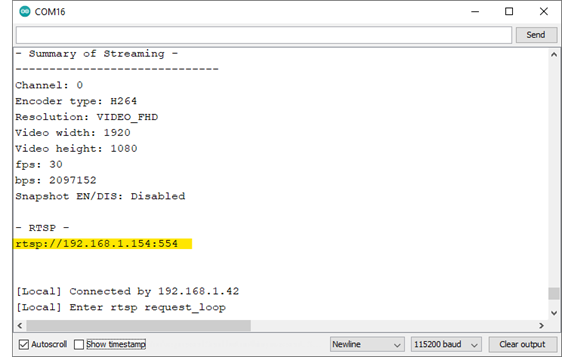
Enable TensorFlow Lite option. It is set to disable by default.
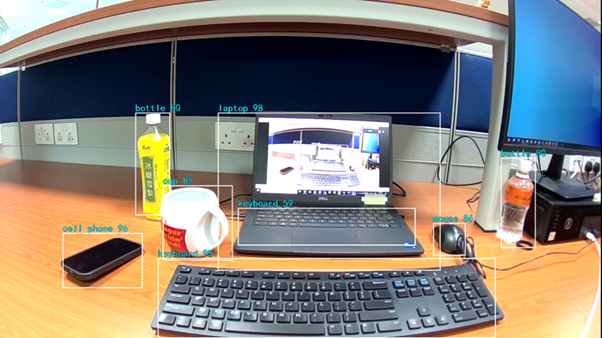
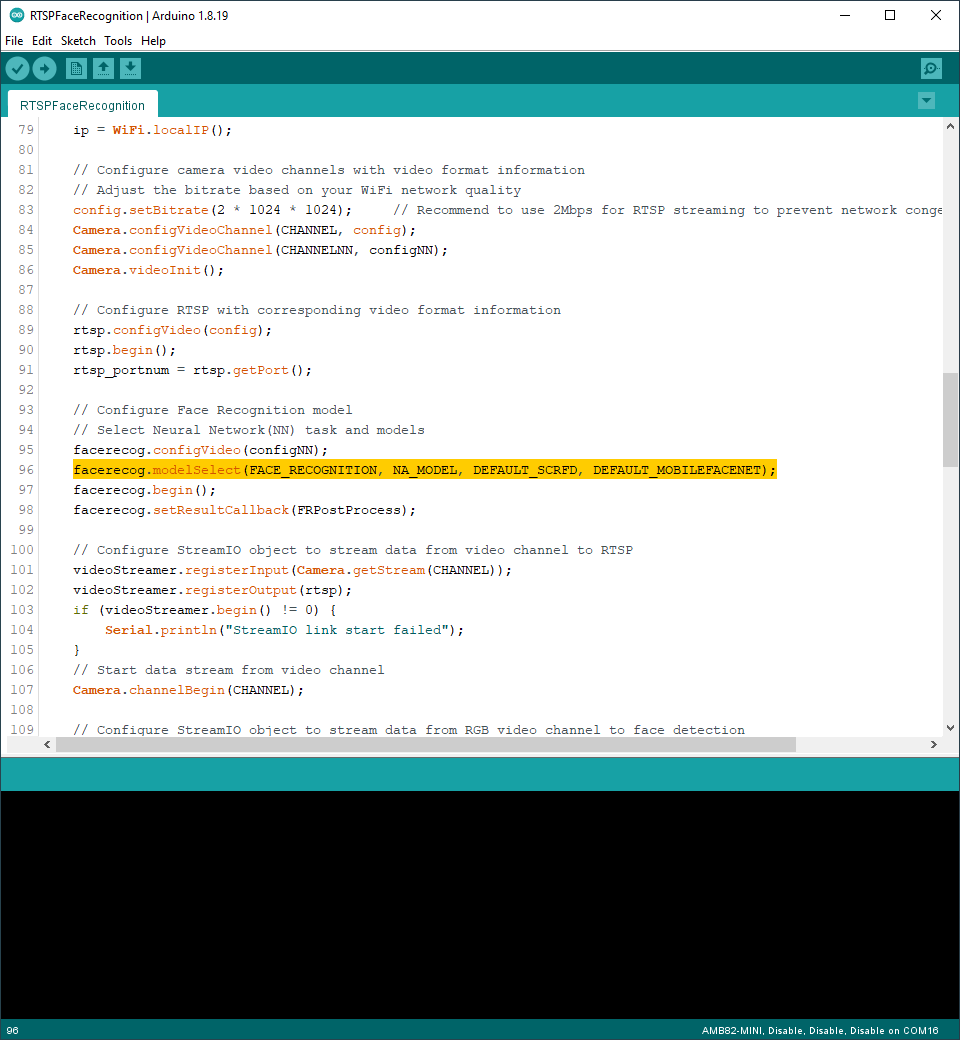
If you are having trouble in getting the words recognized, here are some tips:
Ensure that your surroundings are quiet with minimal noise.
Experiment with varying the distance of the microphone, starting with it at an arm’s length.
Experiment with different tones and volume when saying the words.
Depending on how you pronounce the words, the characteristics of the microphone used, getting one keyword recognized may be easier than the other.
Code Reference
More information on TensorFlow Lite for Microcontrollers can be found at: https://www.tensorflow.org/lite/microcontrollers